Induction


Step Up Tasks
- Biology
- Business
- Chemistry
- Computing
- Core Maths
- Criminology
- Drama & Theatre
- Economics
- English Language
- English Literature
- Ethics
- Fine Art
- Further Maths
- Geography
- Health & Social Care
- History
- Law
- Maths
- Media Studies
- Music Single / Triple
- Photography
- Physics
- Politics
- Product Design
- Psychology
- PE Single
- PE Double
- PE Triple
- Sociology
- Software Development
- Spanish
- Textiles
School Map
The link below will take you to a virtual tour of the school site which will help you get a sense of what to expect when you arrive.
If you do get lost on your way to lessons, just ask any student or staff member and they will show you the way.


Important Documentation
IT Induction & Swiping In/Out
Your Username and Email Address
Your school username will be the same for everything we use in class or for homework. It will be in the following format: two numbers, your surname, then the first 3 letters of your first name. It is not case-sensitive.
For students who are returning from Year 11 at FUS, your username and password will not have changed.
If joining us in Year 12, 13 or 14 your username will always start with the year you would have started in Year 9 with us.
For example:
2026 = 23
2027 = 24
2028 = 25
For example:
- Marie Teyssier joining in 2026→ 23TEYSSIERMar
- Emma von Trapp joining in 2027→ 24VONTRAPPEmm
- Joey Simms-Taylor joining in 2028 → 25SIMMS-TAYLORJoe
If you have any hyphens (eg. Simms-Taylor) you must include these.
If you have any apostrophes (eg. O’Brian) you must leave these out. O’Brian → Obrian
Your school email will be your Username followed by @fernup.dorset.sch.uk
Your Password
Your password will be the same everywhere. We use Microsoft single sign-on (SSO) where possible. You also have a Google account with the same credentials.
Your initial password will be your date of birth (Day, Month, Year), then @, then FUS. It will look like this: DDMMYYYY@FUS
When you create your password, you must have at least one CAPITAL LETTER, at least one NUMBER, and at least one SYMBOL. It must be at least 8 characters long. It cannot be your name!
A good practice for password creation is to use three random words, separated by a symbol/special character, with at least one number included. Some examples:
| Kitten@Biscuit@Waterfa11 | |
| 1979.Jonesy.Oranges | |
Scheme?Chaotic24 Do not use these passwords |
Bromcom & Office 365
You will need to access Bromcom regularly; if you cannot access your account you must tell IT Support as soon as possible.
On the computer, you can get to Bromcom by searching in your web browser for “Bromcom Student Portal“.
To log in, click “Log in with Microsoft” on the main page, and use your school credentials to log in. You will be able to see your timetable and schedules here, along with any detentions or praise comments.
To access your documents when you’re not at school, you can go to Office.com and log in with your school credentials to access OneDrive. This is where everything is saved when you are working in lessons. You can also access Microsoft Teams from Office.com, and browser versions of Microsoft apps.
Swiping in and out of School
On your first day here you will be given an ID card and lanyard, which needs to be visible and worn around your neck at all times while at school. It is very important that you keep this card safe and do not lose or damage it. If your ID card is lost or damaged, please see Mrs Curchin as soon as possible for a replacement.
Your ID card lets you in and out of the gates at the school exits, and you must also use it to “swipe in” and “swipe out” when you arrive and leave the site.
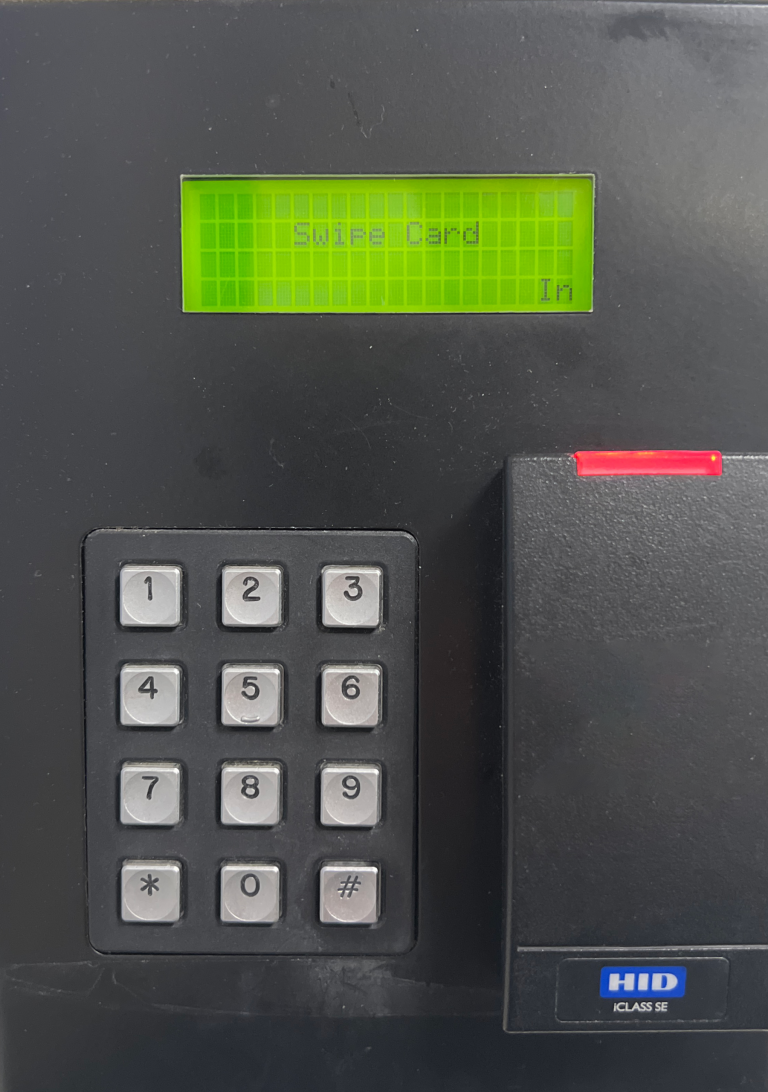
This photograph shows one of the Swipe In machines. There are several of these located throughout the school. You MUST swipe in as soon as you arrive. When you leave school, either at the end of day or during your lunch break, you MUST swipe out. When you return after a lunch break, remember to swipe in again!
To swipe IN: Tap your card on the large pad on the machine. You will hear a beep, and your name will appear on the screen confirming you are signed in.
To swipe OUT: Press the # button on the keypad, then tap your card as before. You will hear a beep and the screen will confirm you are now signed out. If you forget to press # first, the machine will try to sign you in again but it won’t be able to.
You can check if the machine is ready to sign you in or out by reading the bottom right of the green screen. It will either say In or Out. You can press # to toggle the in/out setting.